Product part overview
In the Product part you will find
- Products
All imported products will be displayed in the Products tab. From there they can be deleted if necessary.
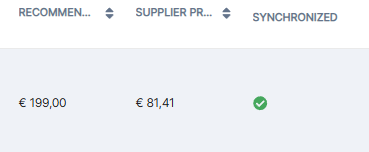
So you have visibility on all the products that are available on your site in real time. In addition to that, by scrolling the information on the right, you have the synchronized column which allows you to identify if all the information has been imported on your site.
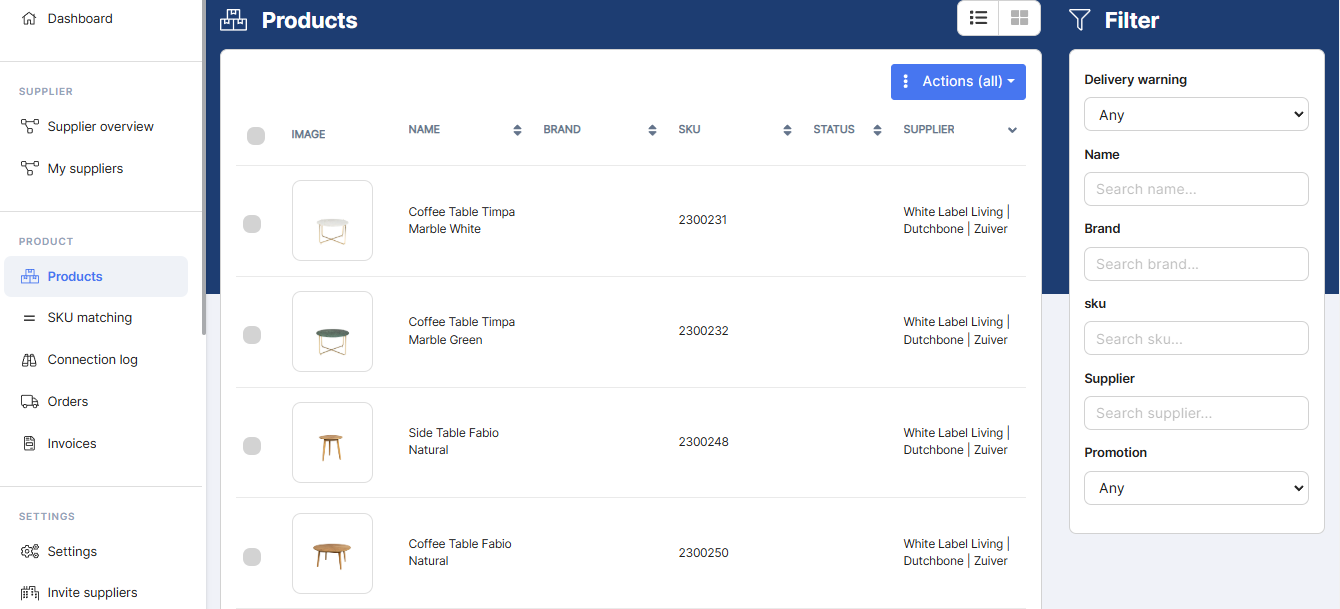
To delete a product, all you need to do is select it, click on actions and you then have the choice to ;
Remove the products in Droppery : Please only do that if the product is already deleted it your webshop
Delete products in Droppery, archive in webshop : You can do that if you want to disconnect the product but you want to keep the product sheet in your draft product
Delete products in Droppery, delete in webshop : You can do that if you want to disconnect the product and you want to delete it from your webshop
Please note that if you delete a product in Droppery but not in your online store, if a customer purchases the products, there is no connection, which leads to an order not being taken into account.

- SKU matching
In case you are working with a supplier before joining Droppery and want to match your existing products with Droppery products manually, you can create a .csv or .xml file with the columns “SKU”, “product_id " And "variant_id ».
Here, "SKU » refers to the SKU assigned to the product in Droppery, while “product_id " And "variant_id » refer to numbers created in your own store. This will link the products already existing in your store to the product in our system, without having to delete or re-import anything.
A .csv file can be created in Excel by selecting the “export as"
- Connection log
In this tab, you can see every connection request made from your account. It's usually not important that users use it, but it can be helpful in determining what type of problem you're having.
- 400/500 : Mainly specifies the problem, usually a validation error on the part of the retailer. If no problems are mentioned, it is worth checking the host's logs.
- 401 : API token permissions are incorrect. Droppery needs to be reinstalled and you need to make sure that read and write permissions are granted. See the installation instructions.
- 402 : A problem regarding payments
- 403 : Probably a firewall issue on the user side, either the store server or CloudFlare.
- 404 : The product was not found. Make sure the product was imported correctly.
- 406 : The requested resource can only generate unacceptable content according to the accepted headers sent in the request.
- 408 : Request timeout error: API occurs when a server does not receive a response from the client within a specified time and the connection has been terminated.
- 422 : The request body is well formed but contains semantic errors. The response body will provide more details.
- 429 : The request was not accepted because the application exceeded the rate limit.
- 503 : The server is unavailable
-
507 : Insufficient storage error, the API error occurs when there is not enough storage space available on a server to respond to an API request.
You can also clear the cache of your online store.
For WooCommerce and Magento: check whether the images folder on the server is writable. You can verify that the stored images are on a server where they can be edited.
In order to resolve a technical problem, our support is available at: info@droppery.io
For optimal assistance, consider including a description of the problem, the SKU number, and the order number.
- Orders
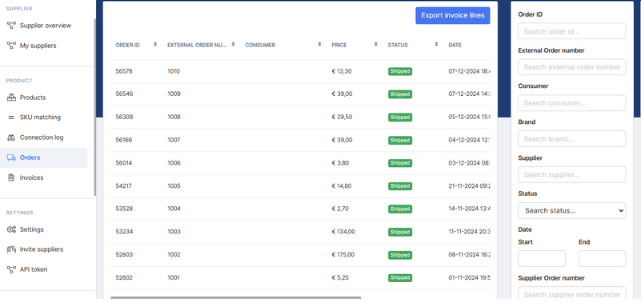
Here you will find information about each order regarding products imported via Droppery. This is primarily for documentation purposes.
This page allows you to track Droppery orders.
On this page, you will also find the tracking of the order which corresponds to the tracking link of the supplier which is sent back to you directly so that the tracking is as precise as possible.
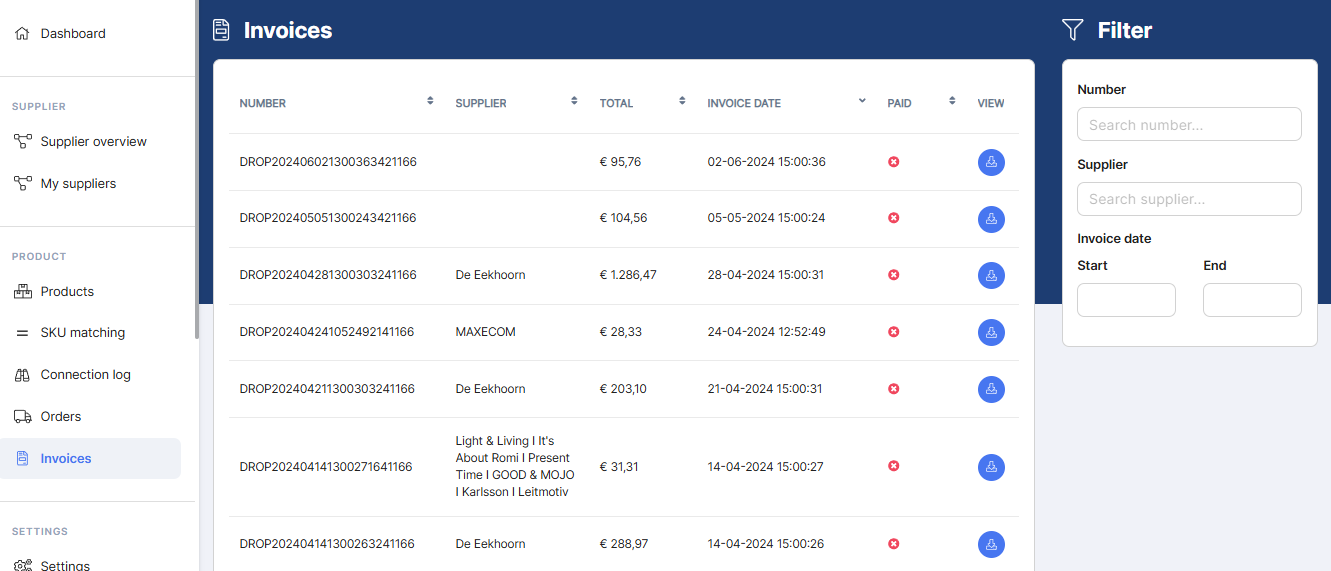
- Invoices
Here you will find the invoices issued by the supplier(s). Depending on the agreement with the supplier, these must be paid manually or are collected automatically. If the invoice are automatic, you will find them in the invoice part.