
Store connection
To connect your store to Droppery and automatically import products, first log in to your Droppery account. Then, go to the Settings section and select Data Sources.
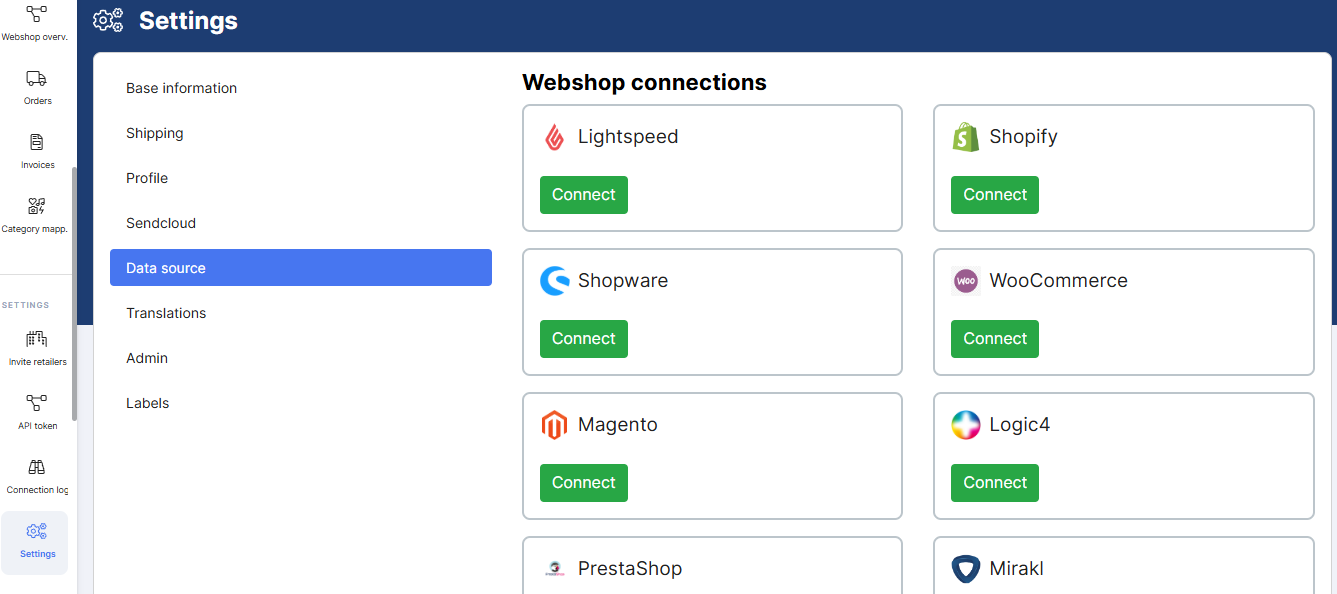
From there, you can select your webshop type and fill in all the required information to link your store to Droppery.
To connect a Lightspeed webshop, you can follow the instruction below.
- Log in to your Lightspeed eCom Back Office.
- Go to Settings → Store Settings → Developers.
- Click New API key and give the key a recognizable name (e.g. the name of the integration).
- Click Save. Toggle the switch to enable the key and check only the permissions the integration needs (Read / Write per section).
- Click Save — under Details, the API key and (optional) API secret will appear. Click Show to copy the secret. Keep it safe (do not share it publicly in plaintext).
To connect a Woocommerce webshop, you can follow the instruction below.
Head to your settings
In the newly appeared submenu, click on “WooCommerce »
At the top of the page, navigate to the “Advance »
In the subheader, click “REST API » and check the box “Enable Legacy REST API »
Now click on the subheader “API REST » then on “Add a key»
Enter a description, “Droppery » is the most logical. Select a user with administrator access and under Permissions, select “Read and Write »
Click on " Generate an API key»
To connect a Shopify webshop, you can follow the instruction below.
Simply send us the following:
- Your Shopify URL (ending in .myshopify.com)
- Your collaboration code — found in Shopify under Settings → Users → Security
Once you have your collaboration code and your .myshopify.com URL, send them to info@droppery.io and we'll take care of the rest.
⚠️ Important
To avoid connection issues, do not install the app twice. If you already have an active Droppery connection, never install the app again — doing so will break the existing connection and cause syncing issues.
If you're unsure, always contact us first at info@droppery.io before taking any action.
To connect a Magento webshop, you can follow the instruction below.
Within Magento back office "System" -> "Authorisations" -> "All users", add new user
Username "Droppery" (must be exact), secure password. Email does not matter
Under tab "Role of user", this account must be an administrator to be able to invoke the Magento 2 Admin REST API
Then send the password and shop URL to us
If applicable, send us the following information:
For suppliers: If product image URLs differ from basic shop URL (e.g.: that there is "/pub/" between them), please provide this URL
For suppliers: If multiple/different location(s) for product stocks, please provide the "source_id" we should have.
You can also configure connections to the following ERP systems: IONE, Exact Online, Twinfield, Reeleezee, Snelstart, Afas, Unit4.
If you need additional support, feel free to contact us at info@droppery.io.