
Products

Here you will find an overview of all uploaded products, with several ways to filter them. The listing shows you an image of the product and various details, as well as how much information is available on each product and which is missing.
- Products importation
If no products have been uploaded yet, you need to click on the blue “Actions” button in the Products tab.
These actions can be used to upload information to Droppery.

If you have already connected your store via Data Source : How to connect my store , you can directly click on Import Products to append new data.
If not, simply click on Add Products and upload an XLS or CSV file. To ensure a successful import, please use the following file template : https://docs.google.com/spreadsheets/d/1qyhn3ZMMXcBx_BDH13eRDNFSYB23NujG/edit?usp=sharing&ouid=108834053978947964386&rtpof=true&sd=true
- Product page

This page displays all product information in detail and gives you the option to delete a product and edit it with the blue symbol on the left.

Here you can adjust every piece of information a product needs. At the bottom of the page you can also download more images

Note that the current limit for image uploads is 10MB per upload. This means that you need to ensure that individual images do not exceed 10 MB. However, the total size of the images can exceed 10 MB if you upload them individually and click "Send" between each one.
! Important: Each modification made must be confirmed by pressing “Submit” at the bottom of the page !
- Download Images

The sites always include a brief explanation. On it you can upload photos individually. The file name should be the corresponding SKU that the image should be linked to.
For example: If you want to upload an image for SKU 102536, the image file name should be 102536.png. If you want to upload multiple images for the same SKU, add a "-1", "-2", etc., so 102536-1.png and 102536-2.png
Once you have finished selecting the images, click “Download”.
This tab is also on the main sidebar
- Upload Stock

This page allows you to upload a .csv or .xml file to update stock information for previously uploaded products. The file must contain the 'sku' and 'stock' columns. A template can be selected and downloaded on the right side of the page.
This tab, same as Upload Images, is also on the main sidebar
- Price import
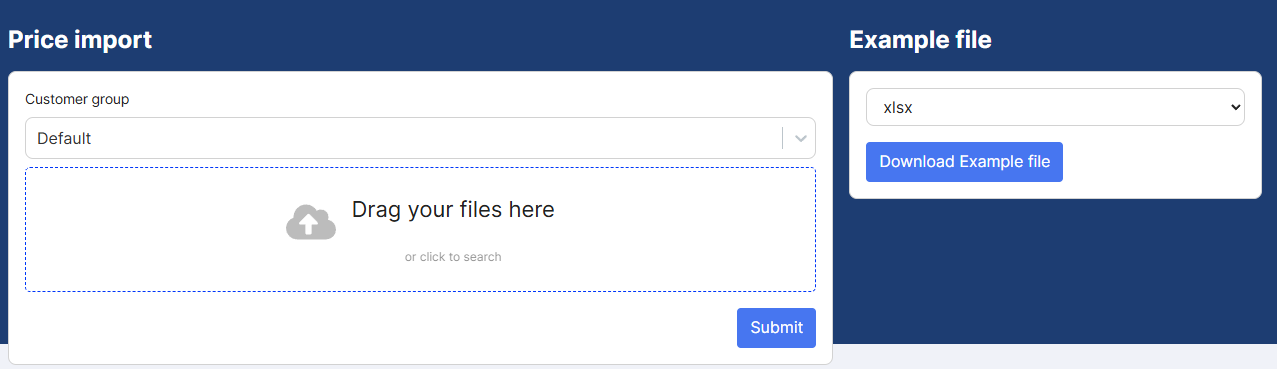
This page allows you to simultaneously update the prices of a large number of products previously posted online. You can select which customer groups these price changes should be applied to. The file must contain the columns 'sku', 'is_visible', 'retail_price_incl' and 'supplier_price_excl'. Again, a template can be selected and downloaded on the right side of the page.
- Download products

This page allows you to bulk upload products with a .csv or .xml file. You have the option to enable the “Update Existing Products” setting which, if the system detects a duplicate SKU in your uploaded file, will overwrite the existing information. This file must contain at least the columns “name”, “sku”, “retail_price_incl”, supplier_price_excl” and “stock”; more columns can be discussed. Again, a template can be selected and downloaded on the right side of the page.
Product information can always be edited manually later.
Like Upload Actions and Upload Images, this one is in the main sidebar.
- Export

This creates and uploads a .csv file with all your current products and information contained in Droppery. This file can be used to view all information at once and quickly adjust many products with easier access.