
Customer
- Webshop overview – request overview

This houses all the connections that have been presented to you.
At the top, you will find pending connection requests that still require action. In the middle are all the online stores you are currently connected to, and at the bottom are all the refused connections.
You will also see all actions available for the listed online store, such as accepting or declining the connection. After accepting a customer, you can change the customer group if necessary.
!Important: after 72 hours, a connection request will be automatically accepted if no action is taken!
- Customer Groups
-

The Customer Groups tab allows you to divide your products into groups and assign the connected online stores to these groups. If for example, as in the image above, different prices should be applied to certain markets, you can define specific prices and create a group for the respective market. You can either set a price increase (i.e. 10%) or a discount (-10%).

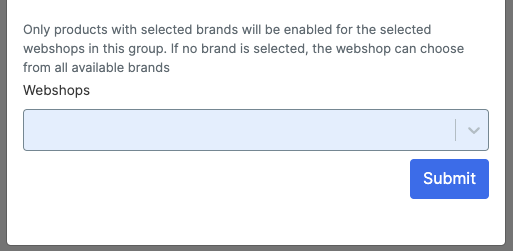
As shown, you can name the group, set the retail price and vendor price with a discount or increase, and apply the groups at a category or brand level. Finally, you can select specific online stores to which the group should be applied.
If no customer group is created, all customers will automatically be in the default customer group and see the standard information.
- Invite retailers

You can invite your own resellers to discover Droppery using this menu. They will receive an invitation directly from you.